Greetings fellow Thinkers!
Engineer Nico here, at your service. Resident Thinker and go-to guy. If you’ve attended any of our workshops, I might have assisted you or taught you a thing or two about the very awesome Arduino microcontroller system and how to use its twice as cool “cousin”, the gizDuino.
I’ll be a regular contributor here on the ThinkLab.PH blog. I’ll be sharing tips and tricks on using your gizDuino, as well as technical guides for popular projects and electronics stuff I get to tinker and play with. I’d love to know the current obstacles you are facing in your projects, and the specific topics you have in mind that you’d want us to feature. Head on over to our Feedback page and Say Hi! Feel free to pour your heart, and thoughts, out!
====================
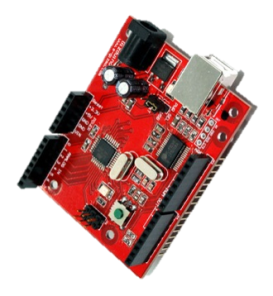 As for my first post, I’ll be starting a series that caters to our budding Thinkers. The gizDuino Fundamentals will cover the basics of using and handling the gizDuino, as well as the tried-and-tested techniques employed in designing microcontroller-based systems. For the total novice, the gizDuino is a locally available Arduino clone. They are electronics prototyping platforms based on flexible, easy-to-use hardware and software. They have the ability to control interactive objects and environments, and has limitless potential to do so.
If you have attended our workshops, you most probably received your very own gizDuino. Drop us a message if you are interested to own one, or a few, because I’m very sure you’ll get hooked once you get to play with it. If you’re near the Taft – La Salle area, you can visit e-Gizmo Mechatronix Central instead – the birthplace of gizDuino and all of its awesome peripherals.
So you might be wondering, “A clone? I want the real thing!” Do not fret young padawan, they are one and the same, with a few minimal changes here and there. This series aims to point out and clear up these slight differences, providing a definitive user’s guide exclusively for our homegrown gizDuino.
This episode deals with starting up your gizDuino hardware with the Arduino IDE – the platform’s programming utility. It runs on Windows, Mac OS X, and Linux, although I haven’t experienced it first-hand on a Linux machine. For all operating systems, it only takes four simple steps to enable your computer to run your gizDuino.
- Download and install the latest version of the Arduino IDE
- Download and install the compatible USB driver for your computer
- Download the gizDuino patch and apply to the IDE
- Launch the IDE, plug in via the USB cable, and program away!
We’ll run them down step-by-step, taking note the subtle differences between Windows and Macintosh machines.
STEP 1: Download and install the latest version of the Arduino IDE
The Arduino IDE is free to use and can be downloaded here. Pick the latest, stable release. As of this writing, the latest version of the IDE is 1.6.12. Also, make sure to choose the right package for your machine.
For Windows users, two packages are available. A binary (*.exe) one and a compressed archive (*.zip). I personally suggest the latter, as you can easily modify your IDE and share this modified version with others or between different computers by re-compressing it back. Install/Extract as needed.
For Mac users, choose the lone option. Double-clicking the file installs and executes the IDE on your system. If the IDE is open at this stage, close it first.
STEP 2: Download and install the USB driver
One of the differences between Arduino and gizDuino is the USB interface chip. Arduino uses FTDI, its corresponding drivers made available inside the IDE package. For gizDuino, PL-2303 is employed instead. Don’t worry though, the drivers for this chip is made available for us on the web.
For Windows users, download your PL-2303 driver here. Note that the chip series is not fully supported by Windows 8 systems. The IDE will still run and you can use it normally, however you might experience erratic and inconsistent behavior. If this occurs, a solution for this is to ask e-Gizmo if they can replace the current chip to a PL-2303HXD (revision D).
For Mac users, download your PL-2303 driver here. This package is for OS X 10.6 and above only. For older OS X versions, or if the package fails to install, download the one here instead.
STEP 3: Download the gizDuino patch and apply to the IDE
For convenience, all the other particulars needed by the IDE to interface with the gizDuino has been collected and sorted out by e-Gizmo and is packaged into a single *.zip file. Download it here as a *.zip file by clicking on File > Download or the keyboard shortcut Ctrl+S. It will contain a single folder named gizduino-
For Windows users, extract and paste the gizduino- folder inside the hardware folder found in the IDE directory. The exact path is …\yourPCdirectory\arduino-1.6.12\hardware\. Refer to the picture below for a visual sample.

For Mac users, extract and paste the gizduino- folder inside the hardware folder also found in the IDE directory. The path however is different. Look for Arduino.app in your system, usually on the desktop or in your Applications folder. Right-click on it and select ‘Show Package Contents’. This enables you to explore the IDE directories.
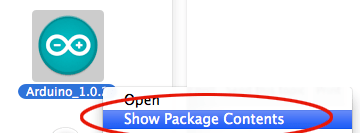
The exact path is Contents > Resources > Java > hardware. The contents of the folder after pasting the patch will be the same as the one in Windows.
STEP 4: Launch the IDE, plug in via the USB cable, and program away!
But before we can do so, we need to pick the correct board type and Serial Port. On the IDE toolbar, click on Tools > Board. The different gizDuino boards should be listed there. Choose the appropriate one for your board. This process is the same for both operating systems, choosing the correct Serial Port however is different.

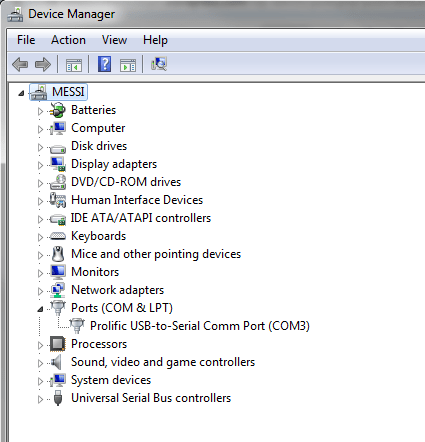
For Windows users, corresponding port numbers are assigned for each of your USB ports, and many of them might show up in Tools > Serial Port. Open the Device Manager to view which port is assigned to the gizDuino. You can access the Device Manager by right-clicking on My Computer > Properties > Device Manager.
For Mac users, simply pick /dev/tty.usbserial in Tools > Serial Port. Note that most of the time, a Network Preferences window will show up during programming. You can simply ignore this by closing the window, or confirm (Add) so it will not bother you again.

All of these steps have been tested extensively with Windows 7 and OS X 10.8 running an Arduino IDE 1.6.12. It has also been tested on Windows 7 using IDE 1.6.12. Give us a shout out in the comments section below if you’re encountering problems when following our procedures. See you in the next episode!




 Thinklab Training and Consulting